SAP GUI Installation & Configuration Guide
SAP GUI is the graphical user interface client which allows users to access the SAP Server remotely over a network. It is supported by operating systems like Microsoft Windows, Apple, Macintosh, UNIX etc.
Note:
Installation process is same for all modules:
- Technical: ABAP and Basis
- Functional: MM, FICO, PP, SD, EWM, PM
The SAP GUI installation files remain the same. Only the login credentials are unique for all users.
Step 1: Click on the SAP GUI Link
Use the link below to download SAP GUI installation files:
► Download SAP GUI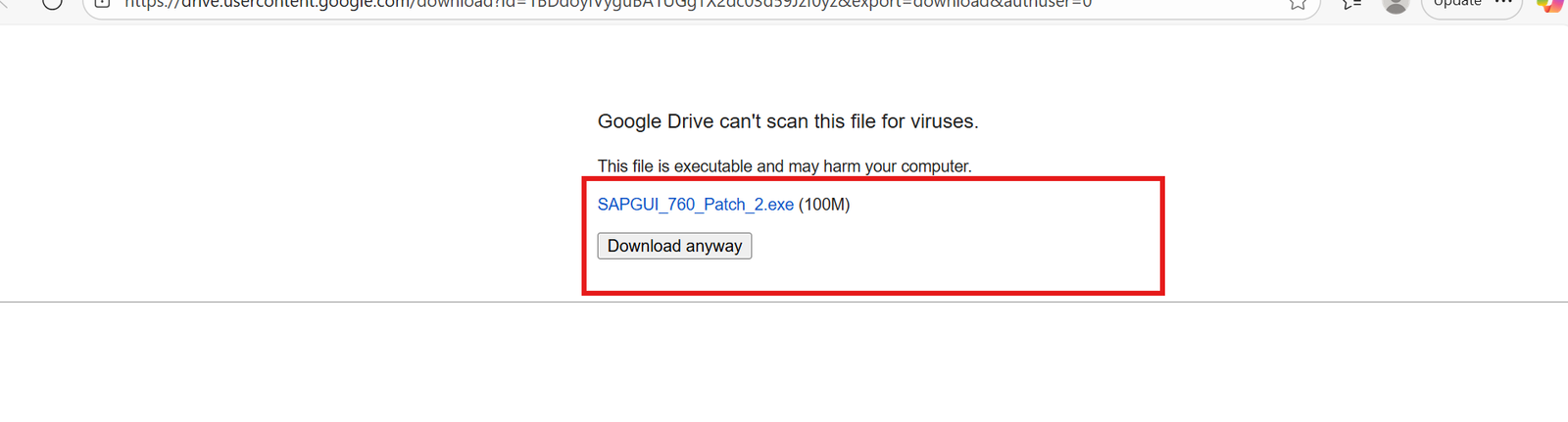
Step 2: Click on the Download Icon
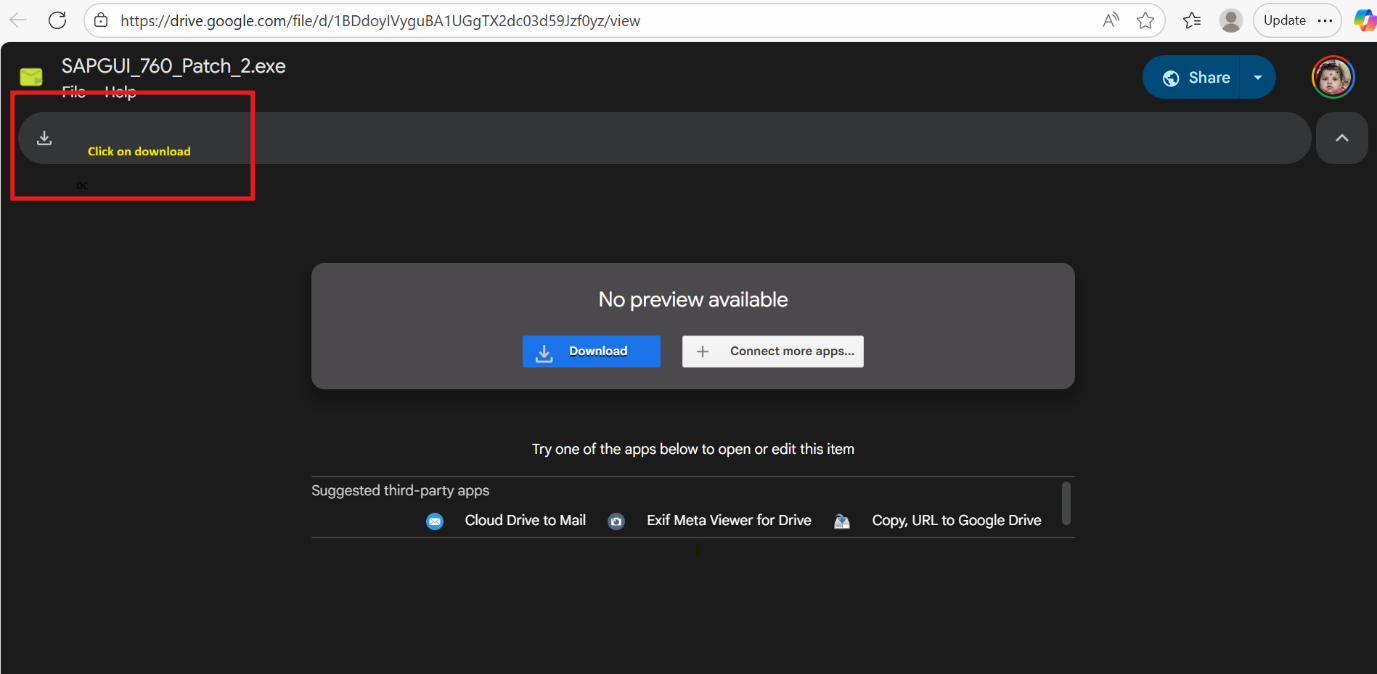
Step 3: Click “Download Anyway”
You will receive a 100MB SAP GUI patch file.
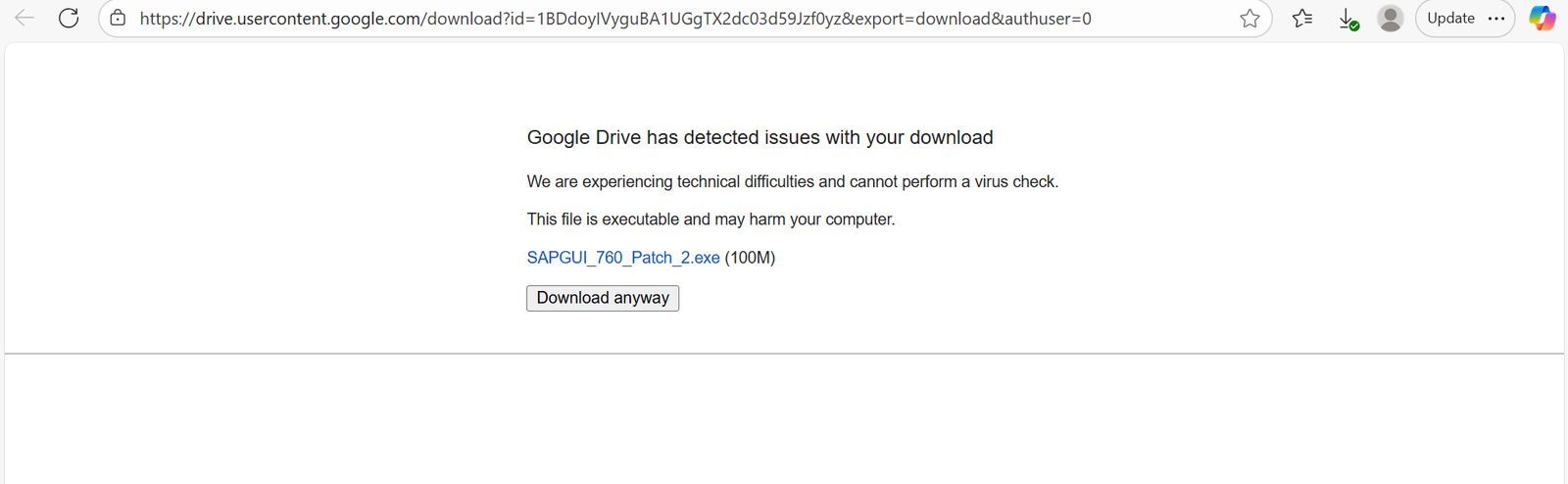
Step 4: The SAP GUI Patch File Will Start Downloading

Step 5: Double Click the Downloaded File
This will start extracting the files automatically.
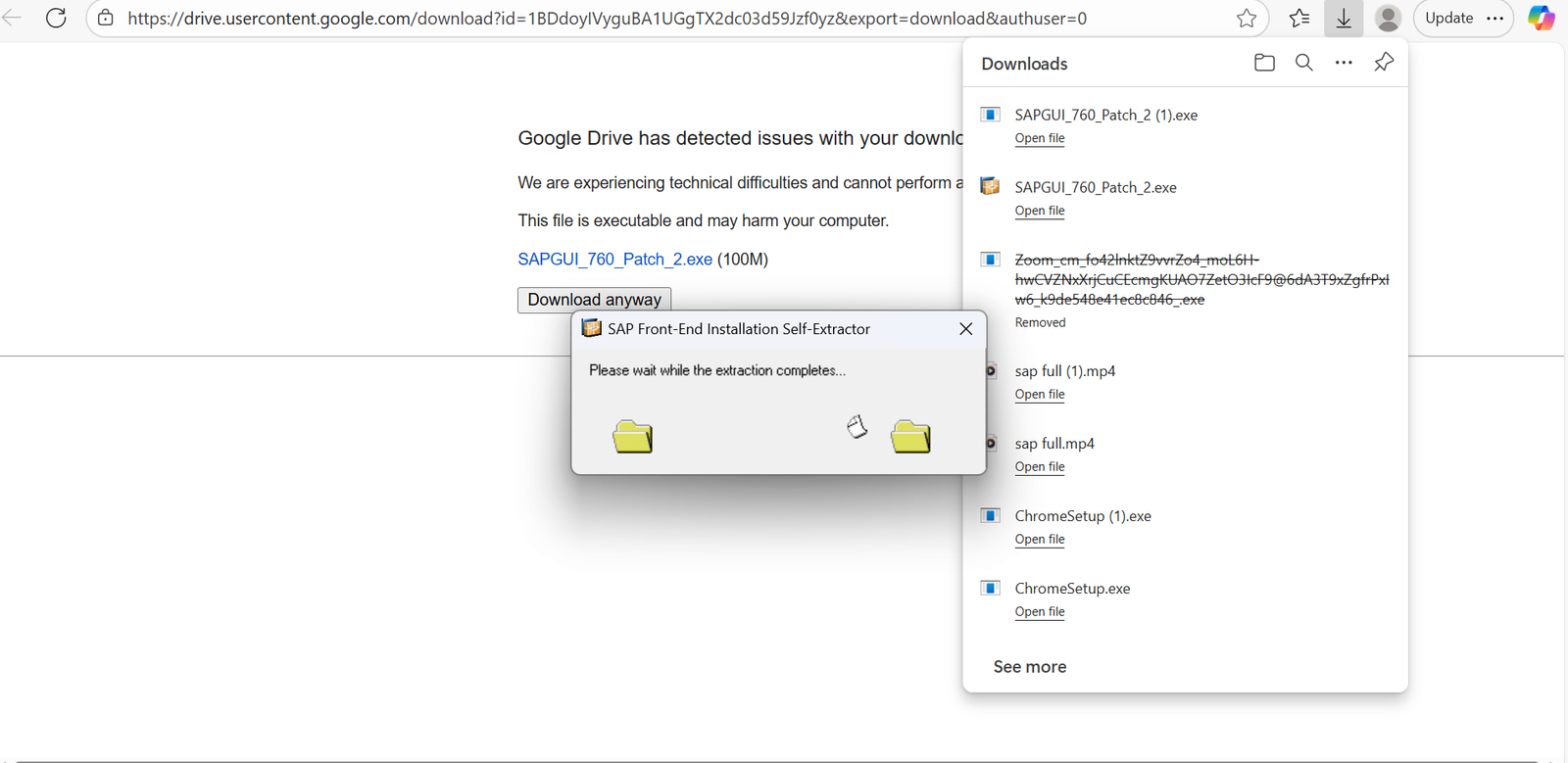
Step 6: SAP GUI Installation Will Start
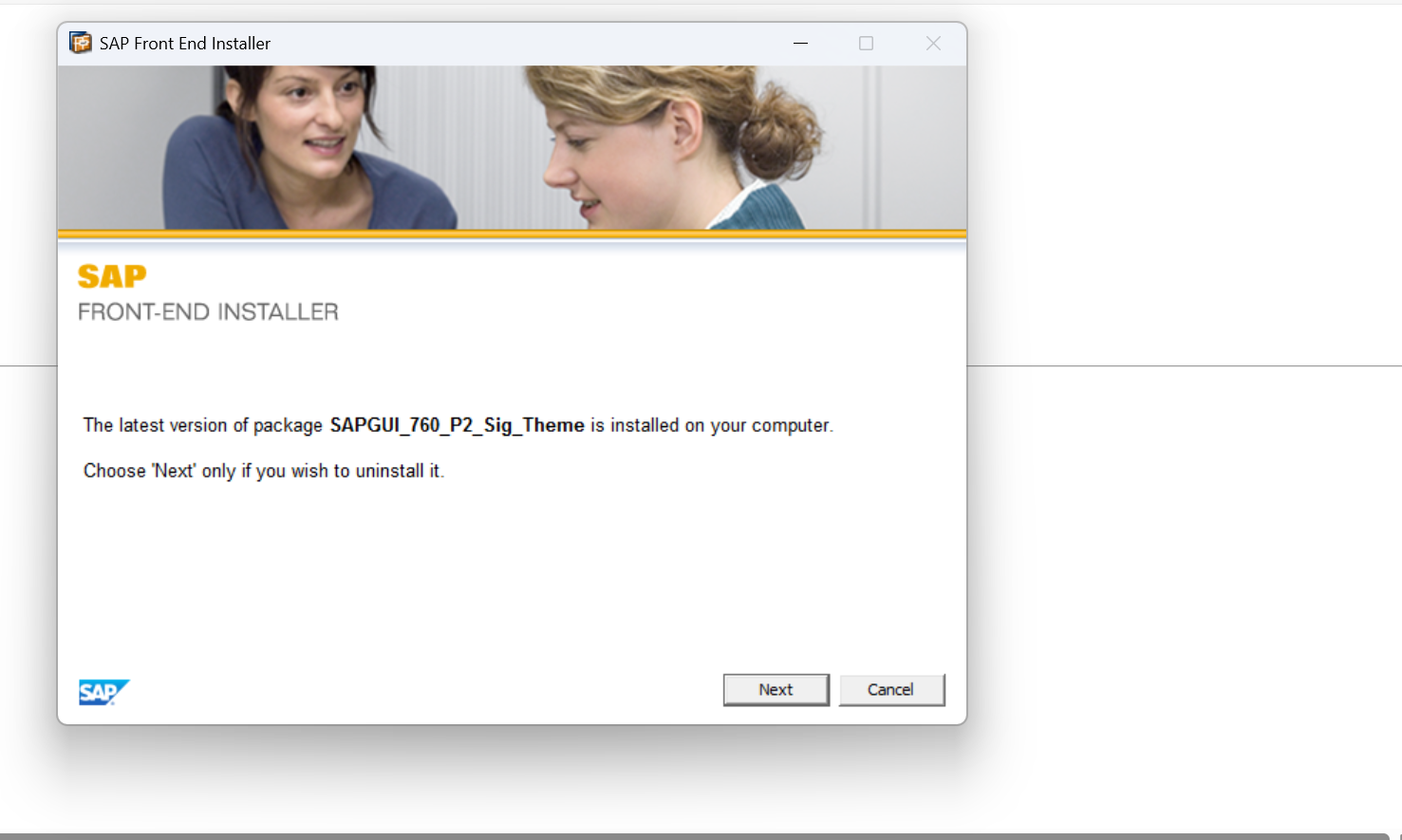
Step 7: Click Next Until SAP Logon 760 Appears
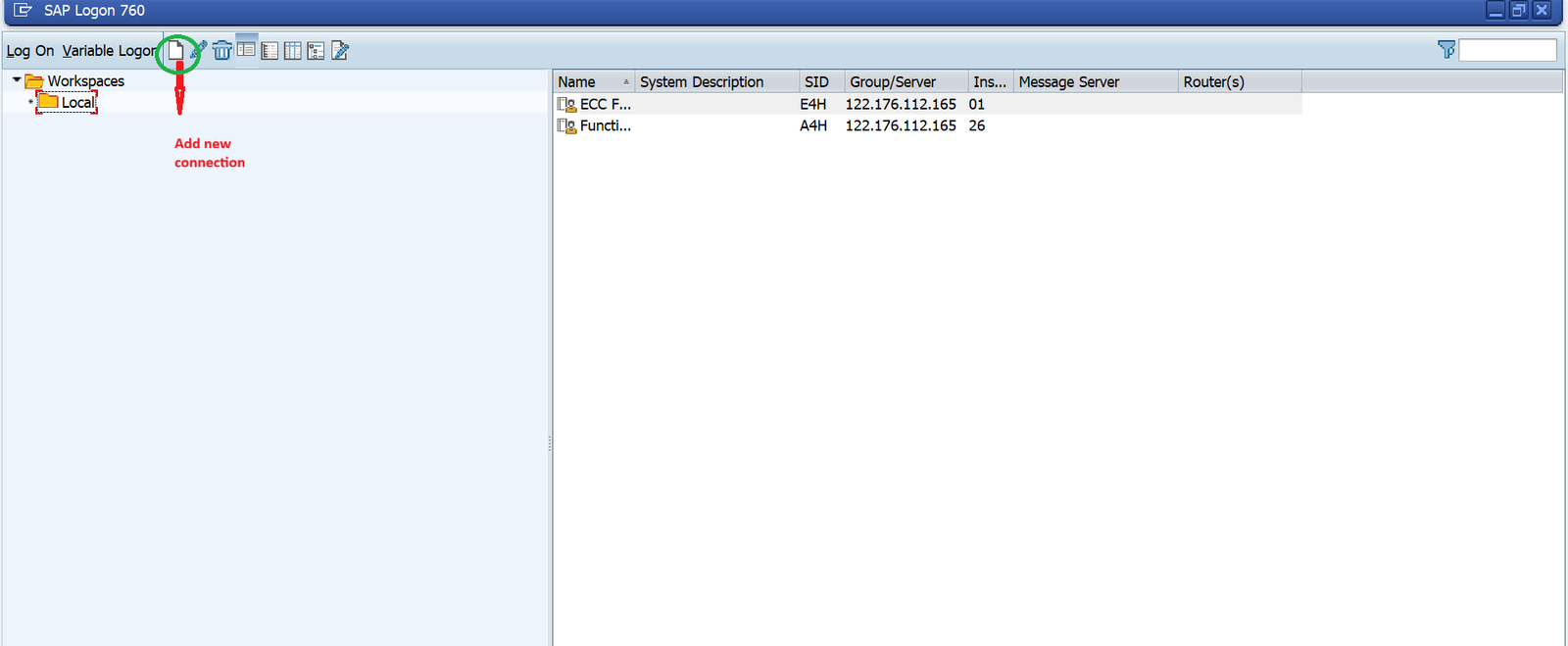
Step 8: Create a New SAP Connection
Right-click on New → Select Add Connection.
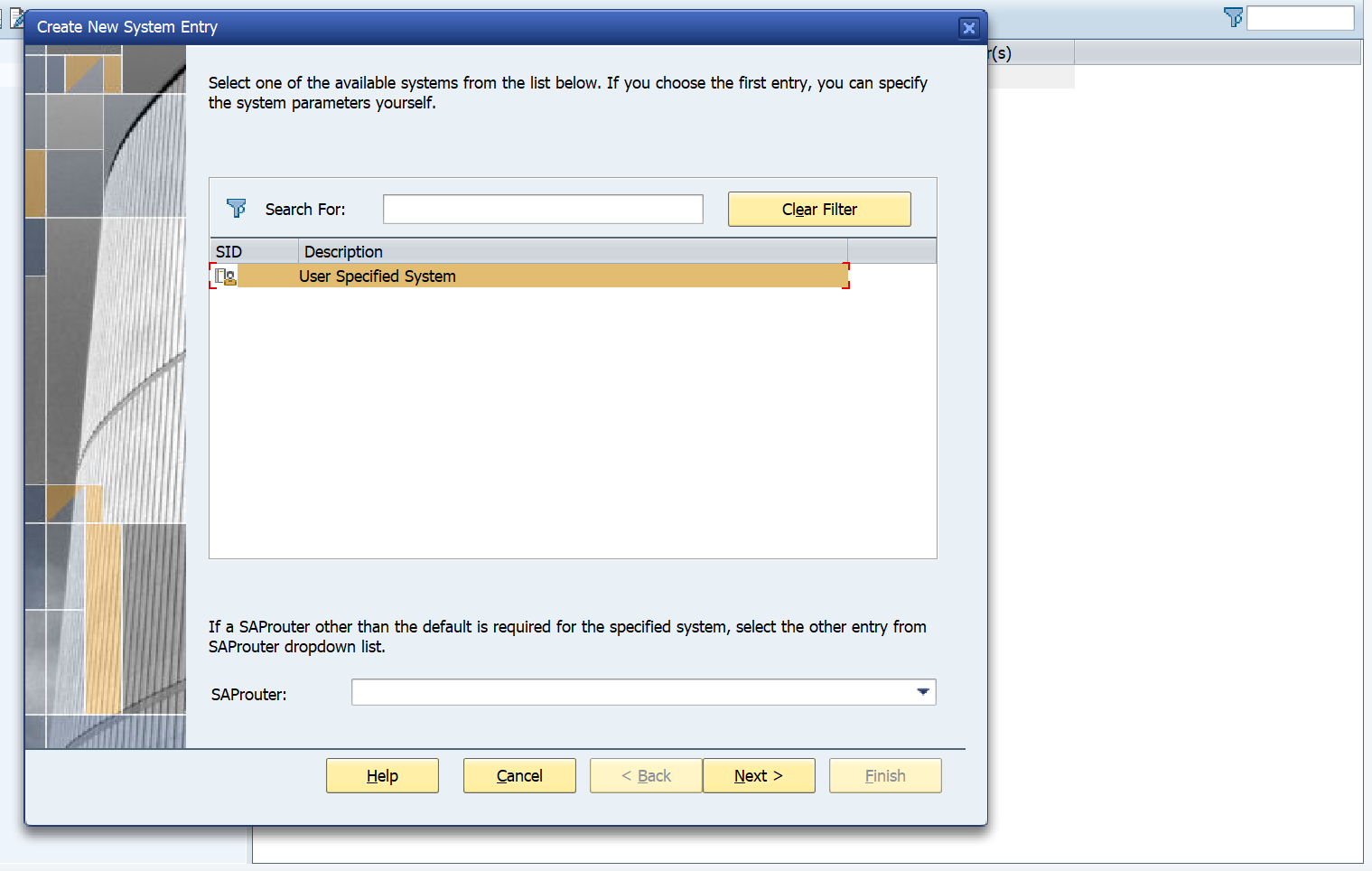
Step 9: Enter SAP Server Details
Here you need to enter SAP server credentials to login.
Contact us to purchase SAP Access.
For SAP Access, Credentials & Technical Support
Call / WhatsApp: +91-9205762221
Email: services@serverfortraining.com